


EAGET - SE980 Magnetic 2230 2242 M.2 NVMe SSD Enclosure
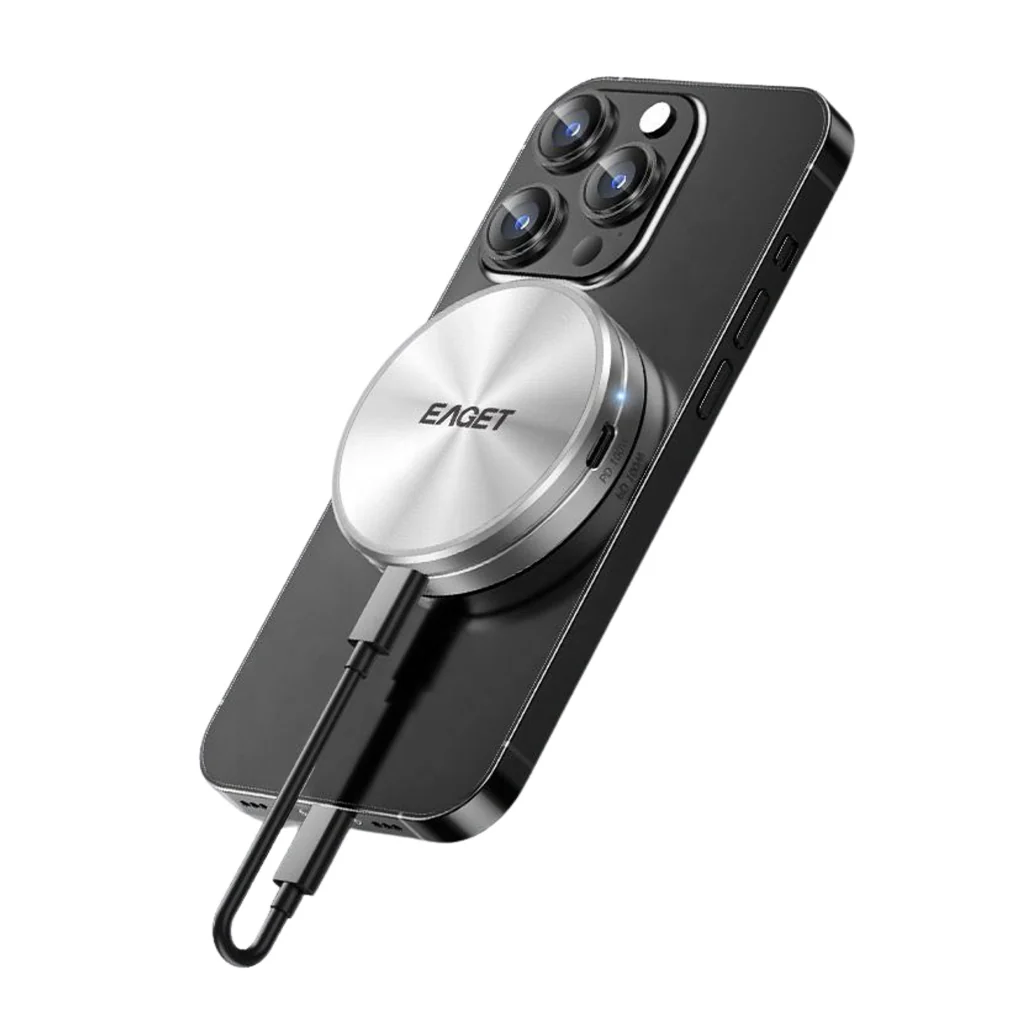
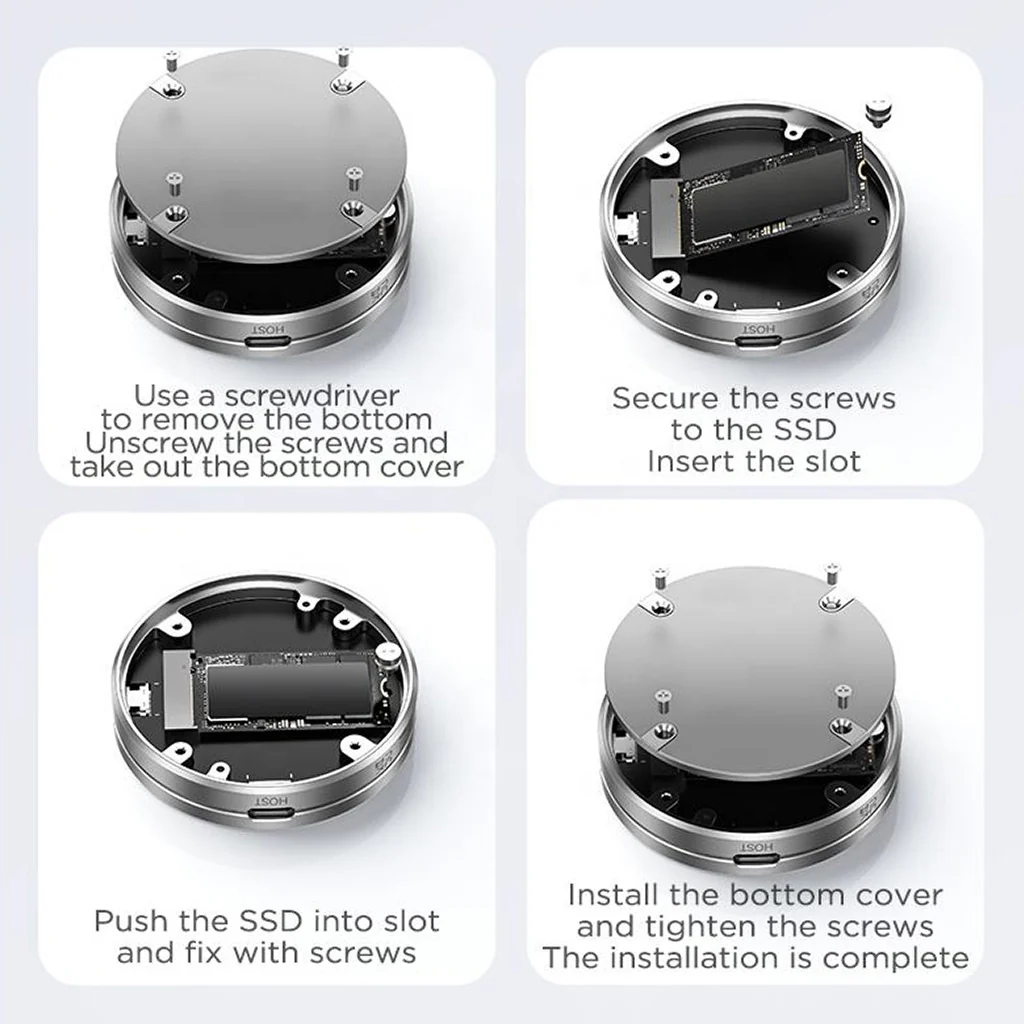
The Eaget SE980 is engineered for users demanding compact yet powerful external storage. Specifically designed for 2230 and 2242 size M.2 NVMe SSDs, this enclosure delivers seamless compatibility for modern ultrabooks and mobile setups. The dual USB Type-C ports enable both high-speed data transfer (up to 10Gbps via USB 3.2 Gen 2) and direct device charging, so workflow is never interrupted. It becomes ideal for travel or mobile media professionals. Its aluminum alloy case ensures excellent heat dissipation and strong protection during daily use. With simple, single-screw installation, upgrades or replacements are hassle-free with the included screwdriver. Eaget SE980 supports up to 4TB SSD capacity, making it a reliable solution for storing, backing up or sharing massive files, videos or projects.
TWO VARIANTS AVAILABLE:
-
Magnetic Enclosure Only: For users who already own an NVMe SSD and want a sleek, durable enclosure.
-
Enclosure with 512GB SSD: Comes pre-installed with a 512GB Ultra-Slim Magnetic Portable SSD supporting up to 20Gbps high-speed transfers for ready-to-use performance.
Note: Setting Up on Windows
When connecting the Eaget SE880 NVMe SSD enclosure to a Windows PC for the first time, the drive may not automatically appear as a usable volume. Follow these steps to troubleshoot and initialize the drive:
- Connect the enclosure to your PC via the included USB Type-C cable
- Open Disk Management:
- Press Win + X and select Disk Management.
- Alternatively, search for "Create and format hard disk partitions" in the Start menu.
- Locate the new SSD:
- You should see the NVMe SSD listed as an unallocated disk or with no drive letter assigned.
- Initialize the disk (if prompted):
- Choose either GPT (GUID Partition Table) or MBR (Master Boot Record). GPT is recommended for modern systems.
- Create a new volume:
- Right-click on the unallocated space and select New Simple Volume.
- Follow the wizard to assign a drive letter and format the partition (NTFS is recommended).
- Complete format and assign drive letter:
- After formatting, the drive will appear under This PC and be ready for use.
- If the disk doesn't appear:
- Try reconnecting or restart your PC.
- Check cable and port compatibility.
- Update USB drivers if needed via Device Manager.
Original: $23.61
-70%$23.61
$7.08Product Information
Product Information
Shipping & Returns
Shipping & Returns
Description
The Eaget SE980 is engineered for users demanding compact yet powerful external storage. Specifically designed for 2230 and 2242 size M.2 NVMe SSDs, this enclosure delivers seamless compatibility for modern ultrabooks and mobile setups. The dual USB Type-C ports enable both high-speed data transfer (up to 10Gbps via USB 3.2 Gen 2) and direct device charging, so workflow is never interrupted. It becomes ideal for travel or mobile media professionals. Its aluminum alloy case ensures excellent heat dissipation and strong protection during daily use. With simple, single-screw installation, upgrades or replacements are hassle-free with the included screwdriver. Eaget SE980 supports up to 4TB SSD capacity, making it a reliable solution for storing, backing up or sharing massive files, videos or projects.
TWO VARIANTS AVAILABLE:
-
Magnetic Enclosure Only: For users who already own an NVMe SSD and want a sleek, durable enclosure.
-
Enclosure with 512GB SSD: Comes pre-installed with a 512GB Ultra-Slim Magnetic Portable SSD supporting up to 20Gbps high-speed transfers for ready-to-use performance.
Note: Setting Up on Windows
When connecting the Eaget SE880 NVMe SSD enclosure to a Windows PC for the first time, the drive may not automatically appear as a usable volume. Follow these steps to troubleshoot and initialize the drive:
- Connect the enclosure to your PC via the included USB Type-C cable
- Open Disk Management:
- Press Win + X and select Disk Management.
- Alternatively, search for "Create and format hard disk partitions" in the Start menu.
- Locate the new SSD:
- You should see the NVMe SSD listed as an unallocated disk or with no drive letter assigned.
- Initialize the disk (if prompted):
- Choose either GPT (GUID Partition Table) or MBR (Master Boot Record). GPT is recommended for modern systems.
- Create a new volume:
- Right-click on the unallocated space and select New Simple Volume.
- Follow the wizard to assign a drive letter and format the partition (NTFS is recommended).
- Complete format and assign drive letter:
- After formatting, the drive will appear under This PC and be ready for use.
- If the disk doesn't appear:
- Try reconnecting or restart your PC.
- Check cable and port compatibility.
- Update USB drivers if needed via Device Manager.